
Recently I saw a question asking how to customize the Product Collection block display… specifically how to insert a visual flash badge. Something that in the pre-block era would have been relatively straightforward by hooking into woocommerce_before_shop_loop_item_title.
I believe we could actually make a block (And this is not the tutorial for how to make a block) that mimicked the sale badge block and then insert it into Product Collection via the block editor. Visual editing is the promise of the block editor after all.
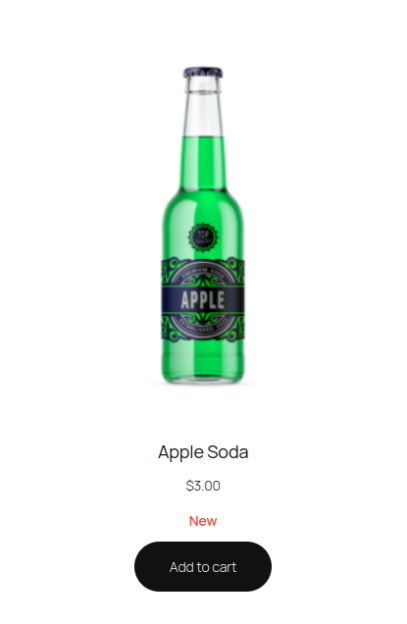
But instead we are going to use block hooks to insert some custom content like the red “New” text in the image below. Block hooks are available since WordPress 6.4.
Registering the block
First we are going to create a little block… called custom/flash-text and again, this isn’t the build a block tutorial so we are going to skip using block.json and provide a simple PHP callback.
/**
 * Register block without a build directory
 *
 * @see  register_block_type() For registering blocks with render callbacks
 * @link https://developer.wordpress.org/block-editor/reference-guides/block-api/block-metadata/
 */
function register_inline_flash_block() {
	register_block_type( 'custom/flash-text', array(
		'api_version' => 3,
		'title' => __( 'Custom Flash', 'your-text-domain' ),
		'category' => 'text',
		'render_callback' => 'render_custom_flash_block',
	) );
}
add_action( 'init', 'register_inline_flash_block' );Code language: PHP (php)
Rendering the block
And here’s the callback. One key thing to note in this callback is that the WooCommerce Product Collection (And the Product Template block that actually renders each product inside the collection) doesn’t seem to provide the product ID as part of the inherited block context. However, the globals $post and $product are available.
This example is checking a product for the existence of the “new” tag and rendering a little “New” text if that condition is met. This can be customized endlessly.
/**
 * Block Render Callback Function
 *
 * @param array $attributes The block attributes.
 * @param string $content The block content.
 * @param WP_Block $block The block instance.
 * @return string The rendered block output.
 */
function render_custom_flash_block( $attributes, $content, $block ) {
	global $product;
	$product_id = $product->get_id() ?? null;

	// Example: Customize output based on context
	$output = '<div class="custom-flash-text has-small-font-size" style="text-align: center; color: #e74c3c; font-weight: 600;">';

	if ( $product_id && has_term( 'new', 'product_tag', $product_id ) ) {
		$output .= '<span class="condition_new"><?php esc_html_e( 'New', 'your-text-domain' );?></span>';
	}

	$output .= '</div>';

	return $output;
}Code language: PHP (php)
Inserting the block using Block Hooks
Finally, we are going to use block hooks to inject our custom block after every woocommerce/product-price block. DOcumentation is a bit scarce on the hooked_blocks_type filter, but it looks like it supports the following positions: before, after, first_child, or last_child.
/**
 * Use block hooks to inject the custom block after the product price block
 *
 * @param string                          $hooked_blocks The list of hooked block types.
 * @param string                          $position The relative position of the hooked blocks. Values: 'before', 'after', 'first_child', or 'last_child'.
 * @param string                          $anchor_block The anchor block type.
 * @param WP_Block_Template|WP_Post|array $context The block template, template part, post object, or pattern that the anchor block belongs to.
 * @return string
 */
function hook_custom_text_after_product_price( $hooked_blocks, $position, $anchor_block, $context ) {
	// Check if we're in the 'after' position.
	if ( $position !== 'after' ) {
		return $hooked_blocks;
	}

	// Check if the anchor block is the WooCommerce product price block.
	if ( $anchor_block !== 'woocommerce/product-price' ) {
		return $hooked_blocks;
	}

	// Add our custom block to be hooked after product price block.
	$hooked_blocks[] = 'custom/flash-text';

	return $hooked_blocks;
}
add_filter( 'hooked_block_types', 'hook_custom_text_after_product_price', 10, 4 );Code language: PHP (php)
The above snippet is effectively saying 1. let’s make sure we’re coming after a block. Then 2. check we are after the woocommerce/product-price block and then finally 3. tell WordPress to insert our custom block.
We do probably need a bit more conditional logic to limit this to appear only in the Product Collection, as currently this badge will appear after after woocommerce/product-price block… including in the single product page. But that will have to come at a later time.